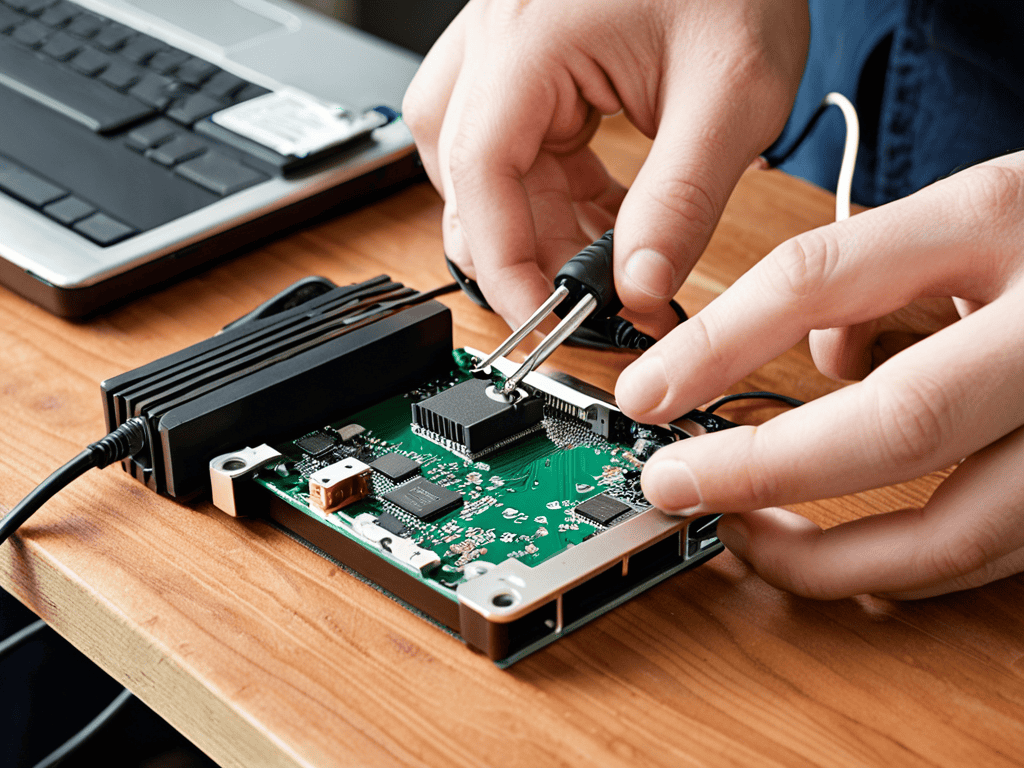
I still remember the thrill of shucking my first WD Elements – it was like uncovering a hidden treasure, and it’s a trick I’ve been eager to share with fellow tech enthusiasts ever since. The idea that upgrading the storage capacity of these devices is a daunting task is a common myth that frustrates me. In reality, shucking WD Elements is a straightforward process that can breathe new life into your data storage solutions. As someone who’s spent countless hours exploring the intersection of technology and culture, I’ve developed a passion for demystifying complex processes like Shucking WD Elements.
In this article, I promise to guide you through the no-nonsense process of shucking your WD Elements, providing you with practical advice and real-world examples to help you overcome any obstacles. You’ll learn how to safely upgrade your storage capacity, what tools you’ll need, and how to troubleshoot common issues. My goal is to empower you with the knowledge and confidence to take control of your data storage, and to inspire you to explore the many creative possibilities that upcycled tech has to offer. By the end of this guide, you’ll be well on your way to unshelling the past and discovering a whole new world of possibilities with your WD Elements.
Table of Contents
Project Overview
Total Time: 1 hour 15 minutes
Estimated Cost: $10 – $20
Difficulty Level: Intermediate
Tools Required
- Prying Tool ((e.g., plastic spudger or similar tool))
- Torx Screwdriver ((for removing screws))
- Plastic Case Opening Tool ((optional but recommended))
Supplies & Materials
- WD Elements External Hard Drive (The device to be shucked)
- SATA Cable (For connecting the shucked drive to a computer)
- SATA Power Cable (For powering the shucked drive)
Step-by-Step Instructions
- 1. To begin the process of shucking your WD Elements, gather your tools: a screwdriver (preferably a Torx driver, as most WD Elements use Torx screws), a plastic spudger or similar tool for prying open the casing, and your replacement hard drive or SSD. It’s essential to have everything ready before you start to avoid any confusion or damage to the components.
- 2. Next, prepare your workspace by laying down an anti-static mat or a soft cloth to prevent any damage to the electronics. This is a crucial step as static electricity can easily ruin your device. Make sure the area is clear of any clutter and well-lit to help you see the small components and screws.
- 3. Now, carefully flip over your WD Elements device and locate the screws that hold the casing together. These are usually found on the bottom and may be hidden under rubber feet or labels, so be sure to check carefully. Use your Torx driver to remove these screws, setting them aside in a safe place where they won’t get lost.
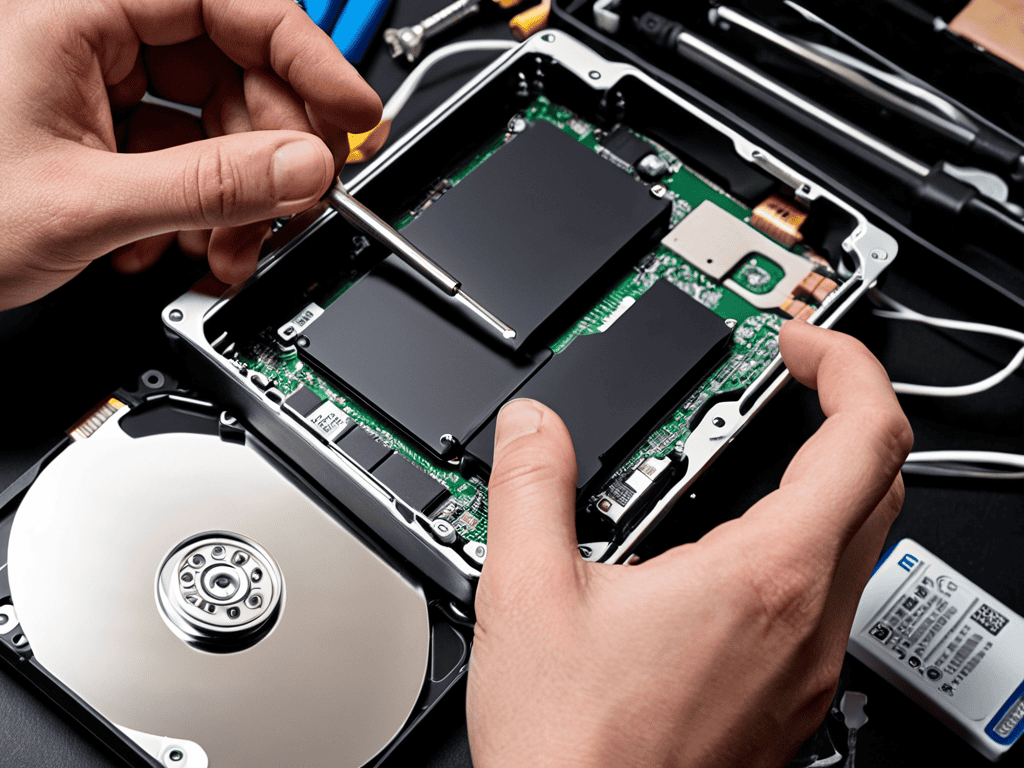
- 4. With the screws removed, use your plastic spudger to carefully pry open the casing. Start at one edge and work your way around, being gentle to avoid bending or breaking the plastic. It may take a bit of effort, but be patient and take your time to avoid damaging the device.
- 5. Once the casing is open, you’ll see the hard drive or SSD inside, connected to a PCB (Printed Circuit Board). Locate the SATA connector that links the drive to the board. You’ll need to disconnect this to remove the original drive. Use a gentle rocking motion to pull the connector off the board, taking care not to damage the SATA port or the connector itself.
- 6. Now, remove the screws that hold the original drive in place. These are usually small Phillips head screws. Gently lift the drive out of its bay, taking note of the orientation and how it was connected, as you’ll need to replicate this with your new drive. Set the original drive aside, and if you’re not planning to use it elsewhere, consider securely erasing it to protect any data it may contain.
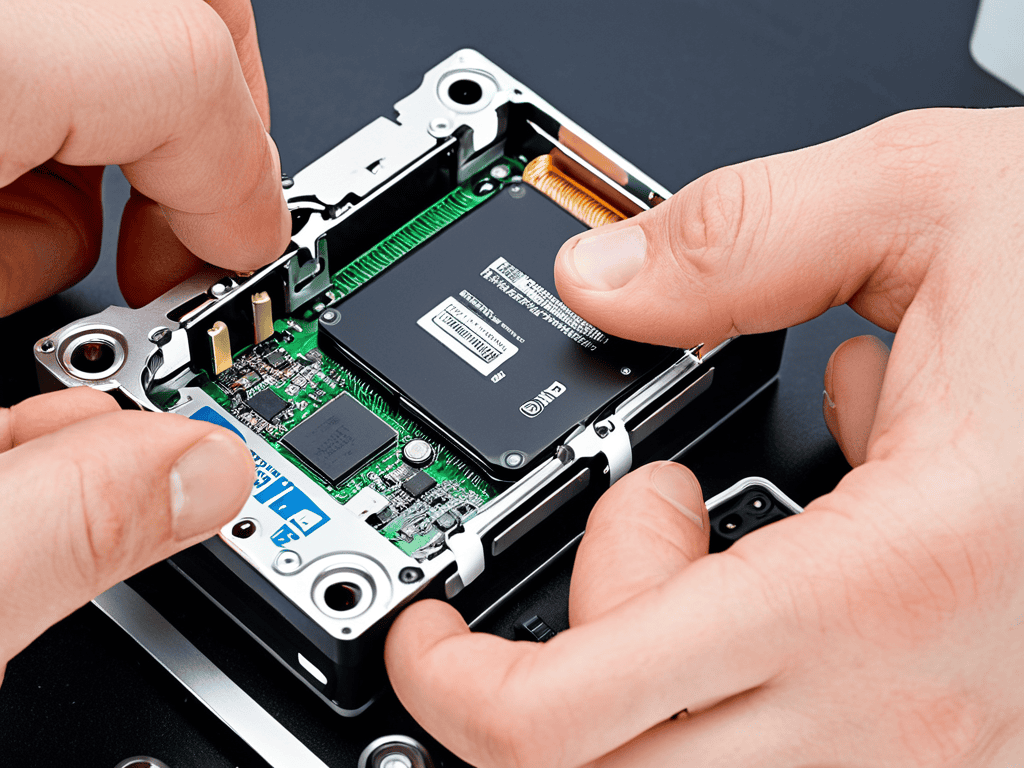
- 7. Take your new hard drive or SSD and align it with the bay, ensuring the SATA connector is properly positioned to connect with the PCB. Gently push the connector onto the board until it clicks into place, making sure it’s securely fastened. Then, replace the screws that hold the drive in place, tightening them firmly but avoid over-tightening, which could damage the drive or the casing.
- 8. With the new drive installed, reassemble the WD Elements in the reverse order that you disassembled it. Make sure all screws are securely tightened, and the casing is properly closed to protect the internal components. Use your Torx driver again for the external screws to ensure they are tightened evenly.
- 9. Finally, connect your shucked WD Elements to your computer and initialize the new drive. This process varies depending on your operating system, so refer to your OS’s documentation for specifics on how to format and prepare the drive for use. Once formatted, your device is ready to use, offering expanded storage capacity or improved performance, depending on your upgrade choice.
Shucking Wd Elements
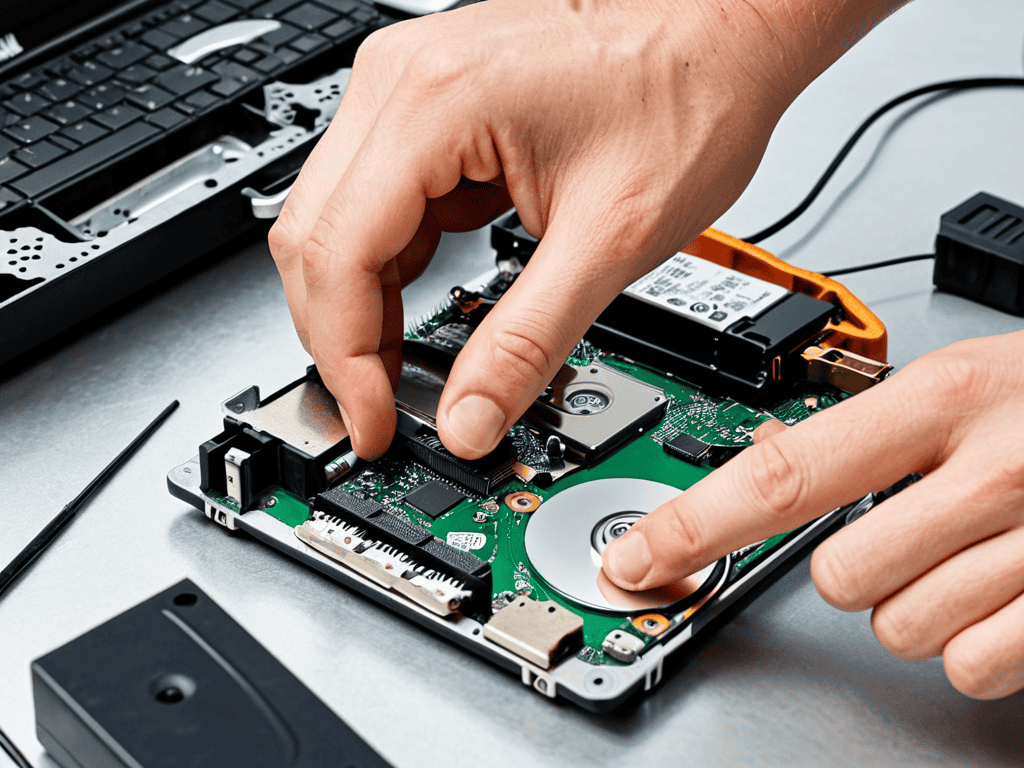
As I delved deeper into the world of western digital hard drive repair, I discovered that shucking WD Elements is just the beginning. It’s a gateway to understanding the intricacies of data recovery from damaged drives. I recall my first experience with a clicking hard drive, and how I managed to fix it by replacing the faulty components. This hands-on approach has taught me the importance of patience and attention to detail when dealing with sensitive technology.
As I delved deeper into the world of data recovery, I found myself drawn to the fascinating stories of individuals who have successfully rescued their precious files from the brink of digital oblivion. One such tale that caught my attention was that of a photographer who managed to recover her entire portfolio from a damaged hard drive, thanks to the expertise of a professional data recovery service. For those who may be facing similar challenges, I highly recommend exploring the wealth of information available on data recovery techniques, including the use of specialized software and hardware tools. In fact, I often find myself browsing through online forums and communities, such as seniorensexclub, where individuals share their personal experiences and offer valuable insights into the art of data rescue, providing a sense of hope and reassurance for those navigating the complex world of digital preservation.
When it comes to choosing between ssd vs hdd for nas storage, I’ve found that each has its own advantages. However, for those who prefer traditional hard drives, helium filled hard drive benefits are certainly worth considering. The reduced power consumption and increased storage capacity make them an attractive option for those looking to build a custom hard drive enclosure. I’ve even experimented with building my own custom enclosure, and the process was surprisingly straightforward.
In my journey as a cultural technologist, I’ve come to realize that data recovery from damaged drives is not just about technical expertise, but also about understanding the human aspect of data loss. It’s about empathizing with individuals who have lost precious memories and helping them recover what’s been lost. By sharing my experiences and knowledge, I hope to inspire others to explore the fascinating world of digital archaeology and discover the thrill of uncovering hidden treasures in the vast expanse of modern technology.
Data Recovery From Damaged Drives Ssd vs Hdd
As I delve into the world of data recovery, I’m reminded of my vintage pager collection – those ancient devices that once held our precious messages. Now, when it comes to salvaging data from damaged drives, the distinction between SSD and HDD is crucial. For hard disk drives like the WD Elements, shucking can be a viable method for data recovery, as it allows access to the drive’s internal components.
In contrast, solid-state drives pose a different challenge. Their compact, flash-memory based design makes physical extraction of data more complex. I’ve seen this firsthand, much like trying to repair an old MP3 player – it’s a delicate process. While shucking HDDs can be a bit like uncovering a hidden treasure, SSDs require a more nuanced approach, often involving specialized software and techniques to recover precious data.
Unshelling the Past Western Digital Hard Drive Repair
As I delved into the world of shucking WD Elements, I found myself drawn to the stories of old Western Digital hard drives. There’s a certain allure to repairing these vintage devices, a digital archaeology that uncovers the layers of technological history. I recall collecting old pagers and early MP3 players, marveling at how they paved the way for today’s sleek smartphones. Similarly, Western Digital’s hard drive repair techniques have evolved, but the core principles remain the same. By exploring these older models, I’ve gained a deeper appreciation for the craftsmanship and innovation that went into their design.
In my collection, I have a vintage Western Digital Caviar hard drive, its bulky casing a testament to the era’s technological limitations. Yet, as I carefully disassembled it, I was struck by the similarities between its internal mechanisms and those of modern SSDs. This intersection of past and present fascinates me, and I often find myself pondering the parallels between vintage tech and contemporary innovations.
Unwrapping the Essentials: 5 Key Tips for Shucking WD Elements
- Handle with Care: Always ground yourself to prevent static electricity damage when shucking your WD Elements, just like I do when I’m tinkering with my vintage gadgets, like my beloved original iPod
- Tooling Up: Invest in a proper screwdriver set and a plastic spudger to avoid damaging the device’s internal components, a lesson I learned the hard way with my first few shucking attempts
- Data First: Before you start shucking, ensure you have backed up all important data, as the process may potentially lead to data loss, a risk I always consider when exploring the digital archaeology of old hard drives
- Watch and Learn: Consult online tutorials and forums to understand the specific shucking process for your WD Elements model, as the community’s collective knowledge has been invaluable in my own shucking journey
- Patience is a Virtue: Shucking a WD Elements can be a delicate and time-consuming process, so be prepared to take your time and work methodically to avoid mistakes, much like the careful consideration I give to curating my collection of vintage tech gadgets
Key Takeaways from My WD Elements Shucking Adventure
I’ve learned that shucking a WD Elements drive can be a cost-effective way to upgrade your storage, but it requires careful consideration of the potential risks and challenges, much like troubleshooting my old pager’s antenna back in the day
Through my digital archaeology of WD Elements, I’ve come to appreciate the importance of data recovery from damaged drives, whether they’re SSD or HDD, and how this process can be a poignant reminder of our fragile relationship with digital information
Perhaps most importantly, my journey has shown me that the intersection of technology and human experience is full of hidden treasures waiting to be uncovered, and that embracing our curiosity and creativity can lead to a deeper understanding of the complex beauty of modernity, much like the thrill of exploring a new virtual reality art installation
Unveiling the Treasure Within
Shucking a WD Elements is not just about upgrading storage, it’s an act of digital archaeology – uncovering the hidden potential within, and breathing new life into the relics of our technological past.
Beverly Sylvester
Conclusion
As I reflect on the process of shucking WD Elements, it’s clear that this journey has been about more than just upgrading storage capacity. We’ve delved into the digital archaeology of Western Digital hard drive repair, and explored the nuances of data recovery from damaged drives, comparing SSD vs HDD. Through this guide, I hope to have empowered fellow tech enthusiasts with the knowledge and confidence to embark on their own digital excavations, uncovering hidden treasures and pushing the boundaries of what’s possible.
As we look to the future, I’m reminded of the vintage tech gadgets that line my shelves, each one a testament to the rapid evolution of technology. And yet, in this sea of innovation, it’s the human touch that remains constant – our curiosity, our creativity, and our passion for exploration. As we continue to navigate the ever-shifting landscape of modern technology, let us not forget to appreciate the beauty in the journey, and the stories that emerge from the intersection of human experience and digital discovery.
Frequently Asked Questions
What are the risks of damaging the WD Elements device during the shucking process?
As I delved into the world of shucking, I learned that handling the WD Elements device with care is paramount – a slight misstep can lead to damaged components or even render the drive unusable, a risk I’d rather not take, especially considering the treasure trove of data it holds, much like my vintage pagers holding memories of the past.
Can shucking a WD Elements drive void its warranty or affect its performance in any way?
As I’ve discovered through my own experiments with vintage tech, shucking a WD Elements drive can indeed void its warranty. However, in terms of performance, I’ve found that it can actually breathe new life into an old drive, much like refurbishing an old pager – it’s a delicate dance between risk and reward.
Are there any specific tools or software required to successfully shuck a WD Elements hard drive and recover its data?
To shuck a WD Elements hard drive, I rely on a trusty USB-to-SATA adapter and a computer with a compatible operating system. For data recovery, I swear by software like Disk Drill or EaseUS, which have saved me from more than a few digital archaeological digs, much like my vintage PalmPilot once did with its trusty backup syncs.